Editing & montage
Edit AI video in the browser with StoryStudio's timeline editor
Generating a shot is one step. Turning several shots into a finished piece, ordered, timed, scored, exported, is a different task, and it usually means moving files into a separate editing app. StoryStudio keeps this step in the browser, right after generation.
What the timeline editor handles
Ordering clips, trimming, adding text overlays, dropping in a music track or a generated voice-over, and exporting a finished MP4. It is built for assembling a set of AI-generated shots into a coherent piece, not for frame-accurate professional post-production.
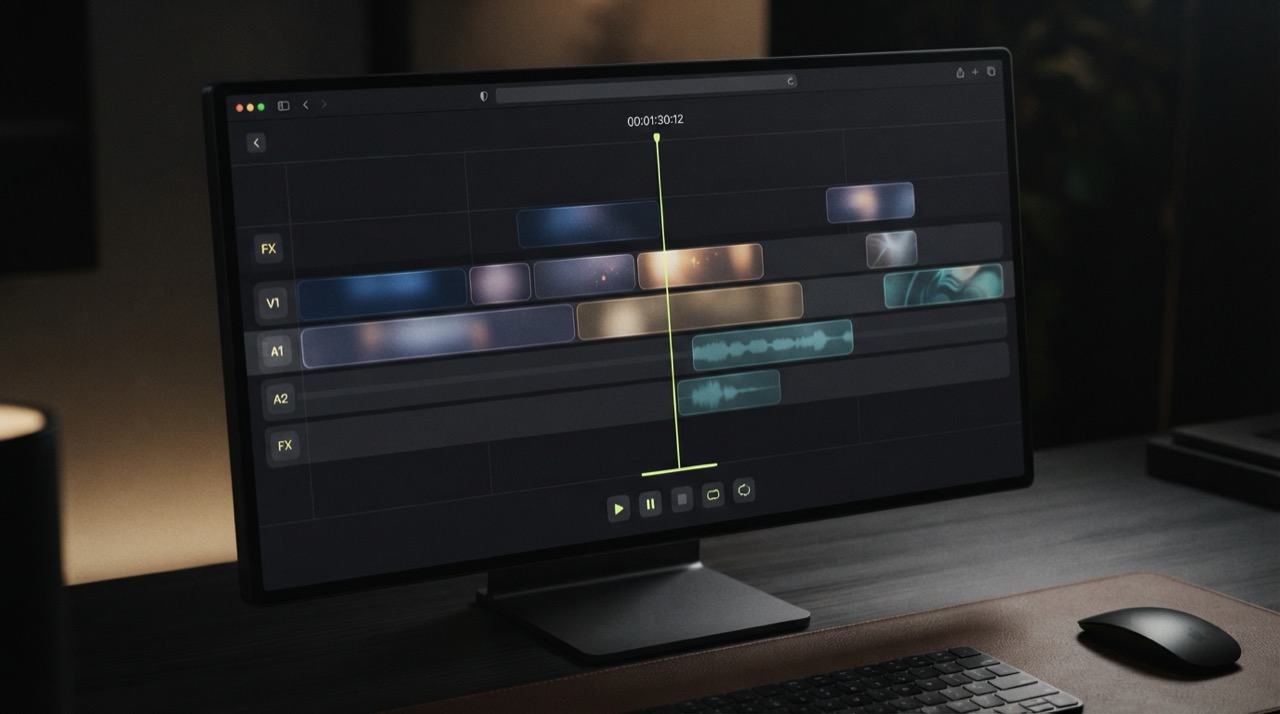
From generation to export, without switching tools
Because the timeline editor lives in the same StoryStudio workspace as generation, a shot you just created is immediately available to drop onto the timeline. There is no export-then-reimport step between generating a clip and using it in a sequence.
When to use it
A product ad with two or three cuts, a short-form vertical video with a voice-over, a demo reel combining several generated shots: anything that needs assembly rather than a single standalone clip.
FAQ
Do I need separate editing software? No. The timeline editor runs in the browser as part of StoryStudio, alongside generation.
Can I add my own music or voice-over? Yes, alongside music and voice generated directly in StoryStudio.
What format does it export to? MP4, ready to publish or hand off.
Ready to assemble a cut? Start with StoryStudio.